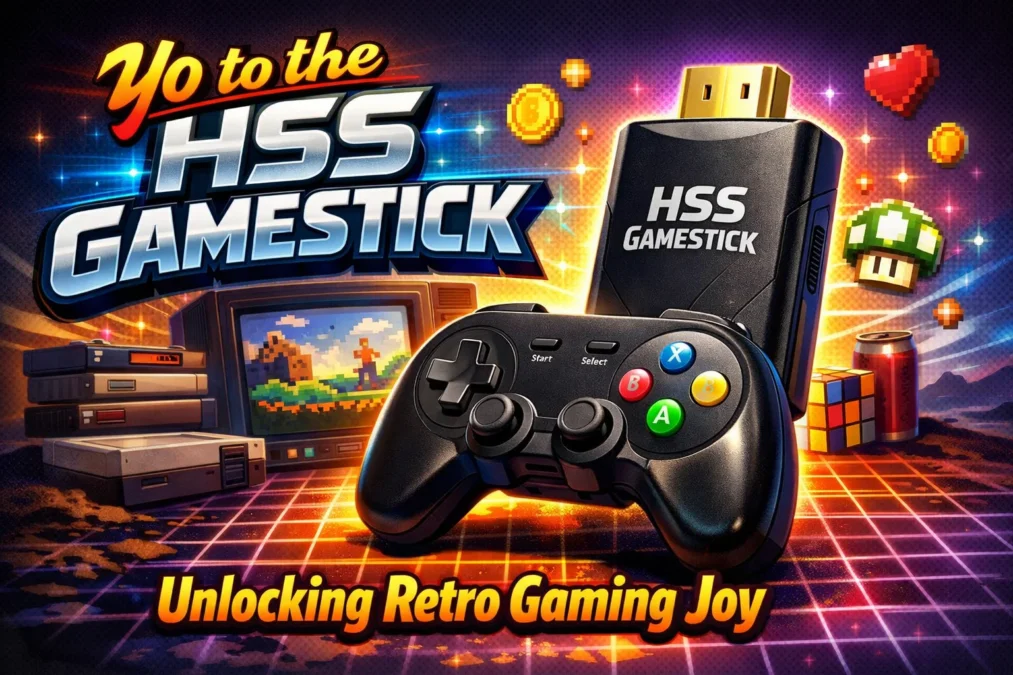
Yo to the HSS GameStick: Unlocking Retro Gaming Joy
So you’ve got your hands on an HSS GameStick—or maybe you’re digging it out of a drawer, ready for a nostalgia trip. That tiny plug-and-play console is a portal to thousands of classic games, but without the right guide, it can feel more confusing than a badly translated Japanese RPG from 1990. You might be staring at the device, wondering where the official instructions for the HSS GameStick are, or how to even begin. Perhaps you’ve hit a snag: the games won’t load, the controllers won’t pair, or you can’t figure out how to add more titles. You’re not alone. The beauty of these affordable retro sticks is also their curse; they often come with minimal documentation, leaving you to scour the internet for scraps of information.

Well, consider your search over. This article is your definitive, comprehensive instructions PDF HSS GameStick substitute—but better. We’re going to go far beyond a simple list of steps. We’ll dive into what the HSS GameStick really is, walk you through setup from unboxing to high score, troubleshoot every common headache, explore the vast world of game additions, and share pro tips to elevate your experience. Whether you’re a total beginner who needs to know which end of the cable plugs into the TV or a seasoned tinkerer looking to unlock its full potential, this guide is designed to be your constant companion. Let’s power up and get you gaming.
Unboxing and Understanding Your HSS GameStick
The first step to gaming bliss is knowing what you’re working with. When you open the box, you should find the main GameStick unit itself, which looks like a large USB drive or a small streaming stick. You’ll also find at least one, sometimes two, wireless controllers that resemble classic Super Nintendo or PlayStation pads. Crucially, there will be an HDMI cable and a USB power cable. The power cable often has a USB-A connector on one end (to plug into a power adapter or your TV’s USB port) and a micro-USB or USB-C connector on the other that goes into the GameStick. Before plugging anything in, take a moment to inspect all components. A missing or faulty cable is a common first hurdle, and knowing what you have is half the battle.
It’s important to understand what the HSS GameStick is. It’s not a licensed Nintendo or Sega product. It’s a dedicated emulation device, a small computer pre-loaded with software that mimics the hardware of old consoles (like the NES, SNES, Genesis, and others) and comes packed with ROM files of the games. This is why a formal instructions PDF HSS GameStick is often elusive—the manufacturers sometimes change, and the software can vary slightly between batches. However, the core principles remain the same. The stick handles the emulation processing, the controllers give you input, and your TV displays the output. Grasping this basic architecture will help you troubleshoot issues later, as you’ll know whether a problem is likely with the hardware connection, the controller pairing, or the software itself.
The Initial Setup: From Box to Title Screen
Now for the fun part: making it work. First, locate an available HDMI port on your TV. Plug the HDMI cable into the GameStick and then into your TV’s port. Remember which HDMI input number it is (e.g., HDMI 1). Next, you need to provide power. The most reliable method is to use the included USB power cable. Plug the small end (micro-USB/USB-C) into the GameStick’s power port. The other end can be plugged into a standard USB wall adapter (like one for a phone) or, if your TV has a USB port marked for service or power, you can try that. Using a TV USB port is cleaner cable-wise, but some TVs don’t provide enough consistent power, so if you have issues, switch to a wall adapter.
With the cables connected, turn on your TV and switch to the correct HDMI input. You should see the HSS GameStick boot screen, typically a logo or a simple menu system. Now, grab your wireless controller. It will need power, usually from AA or AAA batteries. Insert them, then look for a pairing button. Often, you simply press the “Home” or “Start” button to wake it up, or there’s a small button on the back of the controller or inside the battery compartment. You might need to press a pairing button on the GameStick unit itself as well. Once paired, you should be able to navigate the menu. This initial setup is the most critical phase covered in any basic instructions PDF HSS GameStick, and getting it right sets the stage for everything else.
Navigating the Main Menu and Built-in Games
The menu system of the HSS GameStick is usually straightforward but can vary in polish. You’ll typically be presented with a list of game consoles: NES, SNES, SEGA Genesis, Game Boy, etc. Using the D-pad and buttons on your controller (usually “A” to select, “B” to go back), select a console to see a list of all the pre-installed games for that system. Scroll through, pick a game, and press “A” to launch it. The emulator will load, and you’ll be in the game. It’s that simple. Take some time to explore the different systems and their libraries. You might find classics like Super Mario Bros., Sonic the Hedgehog, Street Fighter II, and Contra.
Beyond just launching games, your menu might have some basic settings. You can often access these by pressing a specific button like “Select” or “Menu” while on the main list. These settings might allow you to configure video output (like switching between NTSC and PAL if the picture is rolling), set the menu language, or adjust basic audio levels. Crucially, there is almost always a “Save State” and “Load State” feature accessible in-game via a menu (often triggered by a combo like “Select + Start” or “Select + L1/R1”). This is a game-changer—literally. It allows you to save your progress at any point, even in games that never originally had a save function. Mastering this feature is the first step to becoming a power user of your HSS GameStick.
Connecting and Managing Multiple Controllers
One of the joys of retro gaming is multiplayer. The HSS GameStick usually supports at least two wireless controllers for head-to-head or cooperative play. The process for connecting a second controller is generally the same as for the first: ensure it has batteries, then activate its pairing mode. The system should detect it automatically. In some models, you need to connect the first controller, then navigate to a specific “Controller” or “Bluetooth” setting in the main menu to pair the second one. If a controller disconnects or fails to pair, the universal fix is to power everything down, remove the controller batteries, and start the pairing process fresh.
Managing controllers also involves understanding their layout. The HSS GameStick controller is designed to map to multiple systems. This can be confusing. For an NES game, the “A” and “B” buttons are straightforward. But for a Genesis game, where the original controller had three main action buttons (“A,” “B,” “C”), the HSS controller might map them across its four-button layout (“X,” “Y,” “A,” “B”). If controls feel off in a specific game, don’t panic. There is usually a way to remap them. Access the in-game emulator menu (again, often “Select + Start”) and look for “Input Settings” or “Controller Mapping.” Here, you can redefine each button’s function, creating a custom layout that works for you. This level of control is rarely detailed in a brief instructions PDF HSS GameStick, but is vital for comfort.
Troubleshooting Common HSS GameStick Problems
Even with a perfect setup, you might hit a snag. Let’s tackle the most common issues. First is “No Signal” on the TV. This is almost always a power or connection issue. Double-check that the GameStick is firmly seated in the HDMI port. Try a different HDMI port on your TV. Most importantly, ensure it has adequate power. Always prefer a wall adapter over a TV USB port for troubleshooting. If possible, try a different HDMI cable. This process of elimination is your best tool.
Second is controller pairing failure. If the controller won’t connect, or connects and then drops, the issue is usually with power or interference. First, replace the controller batteries with fresh ones—weak batteries are the #1 cause. Move closer to the GameStick unit, as distance and physical obstacles can weaken the signal. If using a wall adapter for the stick, ensure it’s not placed right next to it, as electrical interference can occur. For persistent problems, perform a full reset: unplug the GameStick, remove all controller batteries, wait 60 seconds, then plug in the stick, let it boot fully, and then insert batteries and try pairing. This clears any corrupted handshake data.
| Problem | Likely Cause | Solution |
| No Signal on TV | Insufficient power, loose cable, bad port. | Use wall adapter, reseat cables, try different HDMI port. |
| Controller Won’t Pair | Weak/dead batteries, interference, corrupted pairing. | Use fresh batteries, reduce distance, full power cycle of stick & controller. |
| Games Freeze or Lag | Overheating, corrupted game file, weak power. | Ensure ventilation, try different game, use powerful wall adapter (5V/2A). |
| Audio Distortion | Outdated TV compatibility, bad ROM. | Change audio mode in system settings, try different game. |
| Can’t Save Progress | SD card not formatted/missing, save function misused. | Use in-game Save State feature, ensure SD card is FAT32. |
Third is game performance issues: freezing, lag, or audio glitches. This can stem from a few areas. The GameStick can overheat if enclosed in a tight space; ensure it’s ventilated. The power supply might be borderline; use a 5V/2A adapter for consistent current. Sometimes, the specific game file (ROM) on the stick is corrupt. Try other games from the same console to see if the problem is isolated. As one experienced user put it, “The HSS GameStick is a hardy little device, but it demands clean power and a little breathing room. Treat it right, and it’ll run for years.”
Expanding Your Library: Adding Games via SD Card
The pre-loaded games are great, but the true potential of the HSS GameStick is unlocked by adding your own. This is where the device transitions from a curated toy to a personal retro archive. Most models have a microSD card slot, usually on the side of the main unit. This is your gateway. To use it, you’ll need a microSD card (typically 32GB or smaller is most compatible) formatted to FAT32. Your computer likely formats to exFAT by default, so you may need a free tool like GUIFormat to format it to FAT32.
Once formatted, the structure is key. You don’t just dump ROM files onto the card. You must create specific folders for each console. The exact names are critical and are often:
- NES or FC for Nintendo Entertainment System games.
- snes or sfc for Super Nintendo.
- md for Sega Genesis / Mega Drive.
- gb for Game Boy.
- gba for Game Boy Advance.
- PS for PlayStation (if supported).
Place your legally acquired ROM files (in .zip or .smc/.bin/.md formats, etc.) into the corresponding folder. Safely eject the card from your computer, insert it into the powered-off GameStick, and boot up. There should now be a new option on the main menu, often called “SD Game” or named after the card. Select it, choose your console folder, and your new games will appear. This process transforms your instructions PDF HSS GameStick knowledge from basic operation to system mastery.
Advanced Tips and Tricks for the Power User
Once you’re comfortable, you can fine-tune your experience. Dive into the emulator settings per game or system. From the in-game menu, you can often access video settings like switching between graphical filters. “Bilinear” filtering smooths the blocky pixels for a softer look, while “Integer Scaling” provides razor-sharp, authentic pixel grids. You can adjust the aspect ratio between the original 4:3 and a stretched 16:9. Audio settings might let you reduce latency or enable high-quality resampling. Experiment to find what looks and feels best for you.
Another powerful feature is playlist and favorites creation. Scrolling through hundreds of games can be tedious. Many HSS GameStick firmware versions allow you to mark games as “Favorites.” Even better, you can create custom playlists or folders on your SD card. For example, create a folder on the SD card called _favorites and inside, create shortcuts or copy ROMs of your top 20 games across all systems. By organizing your library thematically (e.g., “Platformers,” “1991 Classics,” “2-Player Co-op”), you curate your own retro gaming channel. This level of organization turns the device from a chaotic arcade into your personal gaming museum.
Maintaining and Caring for Your HSS GameStick
For longevity, proper care is simple but important. Power cycling is your best maintenance habit. Don’t just leave the stick plugged in and powered on indefinitely. When you’re done gaming, exit to the main menu and unplug it from the power source. This prevents software glitches from memory buildup and avoids any risk of slow power-related wear. Keep it clean and cool. Dust the vents occasionally. Never place it behind a TV or in a closed cabinet where heat can build up; these devices are designed to dissipate heat passively through their casing.
Controller care is equally vital. Remove batteries if you plan not to use the controllers for a month or more to prevent corrosion from potential leaks. Clean the controllers with a slightly damp cloth (never spray liquid directly on them) to remove hand oils and grime from those intense gaming sessions. If you’re using an SD card, handle it carefully and always eject it properly from your computer to avoid file corruption. A little preventative care ensures that your HSS GameStick remains a reliable source of joy, avoiding the need for complex repairs that go far beyond the scope of any standard instructions PDF HSS GameStick.
The HSS GameStick in the Broader Retro Gaming Ecosystem
It’s useful to understand where the HSS GameStick fits in the wider world. It sits squarely in the category of affordable, all-in-one plug-and-play emulators. Compared to official mini-consoles (like the Nintendo Classic Edition), it offers vastly more games and expandability but may have slightly less polish in emulation accuracy and menu design. Compared to DIY solutions like a Raspberry Pi running RetroPie, the HSS GameStick is far simpler and more console-like, but less customizable and powerful. Its value proposition is immense: an accessible, low-fuss entry point into retro game emulation.
For many, the HSS GameStick is the perfect gateway device. It introduces the concepts of emulators, ROMs, and save states without requiring a computer science degree. The skills you learn—troubleshooting connections, managing files on an SD card, configuring controllers—are directly transferable to more advanced setups. It demystifies the process. While hardcore enthusiasts might eventually graduate to more sophisticated hardware, the HSS GameStick often remains a beloved, simple option for the living room TV, proving that you don’t need the latest graphics to have a cutting-edge good time.
Conclusion
The journey from unboxing your HSS GameStick to mastering its every feature is a rewarding one, filled with the joy of rediscovery and the satisfaction of solving practical puzzles. While you may never find a perfect, official instructions PDF for the HSS GameStick, this guide has aimed to provide something more valuable: a deep, contextual understanding of the device. You’ve learned not just how to connect it, but how to power it properly. Not just how to start a game, but how to save your place and add thousands more. Not just how to pair a controller, but how to troubleshoot it and remap its buttons.
Ultimately, the HSS GameStick is more than a piece of plastic and silicon; it’s a key to generations of gaming history. With the knowledge from this article, you’re now equipped to move past frustration and into endless play. You can confidently set up multiplayer sessions, curate a personalized game library, and keep your system running smoothly for years to come. So grab that controller, power up your stick, and dive back into the worlds that defined a medium. The classics are waiting, and now, you’re fully prepared to answer their call.
Frequently Asked Questions About the HSS GameStick
Where can I find the official instructions PDF for the HSS GameStick?
Finding an official instructions PDF HSS GameStick from the manufacturer can be challenging, as these devices are often produced by various factories under different names. Your best bet is to check the packaging or any insert cards that came in the box for a QR code or website. More reliably, use general search terms like “HSS GameStick model number manual” along with the specific model (if printed on the device). However, most generic guides, including this article, cover 99% of what you need, as the core functionality is standardized across these types of emulator sticks.
Can I use a USB flash drive instead of an SD card to add games?
This depends entirely on your specific HSS GameStick model’s hardware and firmware. Most models are designed to read game files exclusively from the microSD card slot. A few might have a USB OTG (On-The-Go) capability, allowing you to connect a USB flash drive via an adapter cable, but this is less common and not officially supported. The microSD card method is the universally recognized and most stable way to expand your game library. Investing in a good-quality microSD card formatted to FAT32 is the surest path to success.
Why do some games run poorly or have glitches?
Performance issues usually stem from one of three areas. First, the GameStick may be underpowered for more demanding systems it claims to support (like PlayStation 1). Try using a 5V/2A power adapter for maximum stable current. Second, the specific ROM file might be corrupt or a bad dump. Try sourcing a different version of the same game. Third, there might be a setting in the emulator options. Access the in-game menu and try switching the video renderer or disabling any frame-skipping or advanced effects. Some games just won’t run perfectly due to the limits of the hardware’s emulation power.
Is it legal to download ROMs for the games I add to my SD card?
The legal landscape surrounding ROMs is complex. Generally, downloading a ROM file for a game you do not physically own is a violation of copyright. The ethically and legally safest practice is to only create ROMs from game cartridges or discs that you personally own, using specialized hardware. Many in the retro community emphasize the importance of “preservation” and personal use, but it is crucial to be informed about the laws in your country. The HSS GameStick itself is a legal device; the legality of the software you run on it depends on how you acquire it.
My screen is zoomed in or cut off. How do I fix this?
This is a common overscan issue, where the TV is enlarging the picture beyond the visible area. First, check your TV’s own picture settings. Look for a setting called “Overscan,” “Picture Size,” “Aspect Ratio,” or “HDMI Mode” and set it to “Just Scan,” “1:1,” “Original,” or “Game Mode.” If your TV lacks these options, you may need to adjust within the HSS GameStick itself. Boot into the main system settings menu (not in-game) and look for “Display” or “Video” options. There may be a setting to adjust screen borders or scaling. Adjusting these sliders can help center the picture perfectly on your screen.